Configure Zoiper on a Computer

Configure Zoiper on Windows or Mac to register a 2talk number as a SIP softphone account.

Zoiper can register a 2talk number as a SIP account on a Windows PC or Mac. Use these steps when setting up Zoiper manually.
Before you start

  • Have your 2talk phone number and SIP password ready.
  • Install Zoiper on your computer.
  • Use a working microphone and speaker or headset.

Add your 2talk account

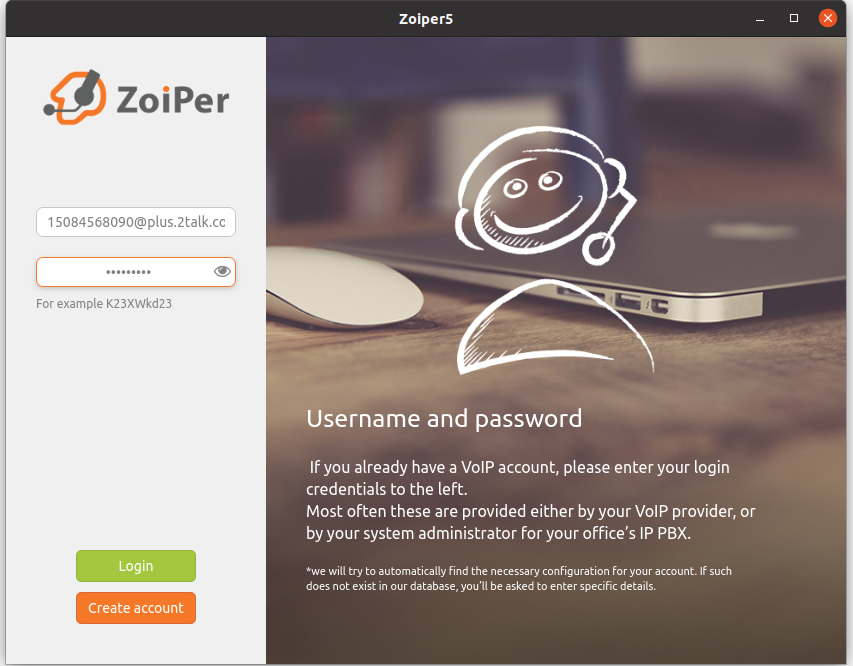
  1. Open Zoiper after installation.
  2. Enter your username in the format [email protected], such as [email protected].
  3. Enter the SIP password for the number.
  4. Click Login.

Zoiper account login

Set the host name

  1. When Zoiper asks for the host name or provider, enter plus.2talk.com.
  2. Click Next.
  3. On the Authentication and Outbound Proxy step, click Skip unless your Zoiper version requires a value.
  4. When Zoiper tests available configurations, select the working SIP transport it finds and click Next.

Zoiper SIP configuration test

Confirm registration

After setup, Zoiper should show the 2talk account as registered. Place a test call and confirm that audio works in both directions.

Table of Contents