Create a New User

Learn how to create a new user in 2talk, assign administrator or standard user permissions, add a phone number, and complete the account setup process.

You can invite new users to your 2talk account by adding their email addresses and assigning the appropriate permissions. Once invited, each user can set up their profile and access their 2talk account and apps.

Step 1: Access User Profiles

  1. Log in to your 2talk account.
  2. Go to Profile > Account Information.
  3. On the right side of the page, locate the User Profiles section.
  4. Click Create New User at the top of the section. This will open the Create New Users tab.

Step 2: Add the User’s Email Address

  1. In the Create New Users tab, enter the email addresses of the users you want to add to your account.
  2. Press Enter after each email address. Each address will appear in a blue box once it has been added.

Step 3: Assign Permissions and a Phone Number

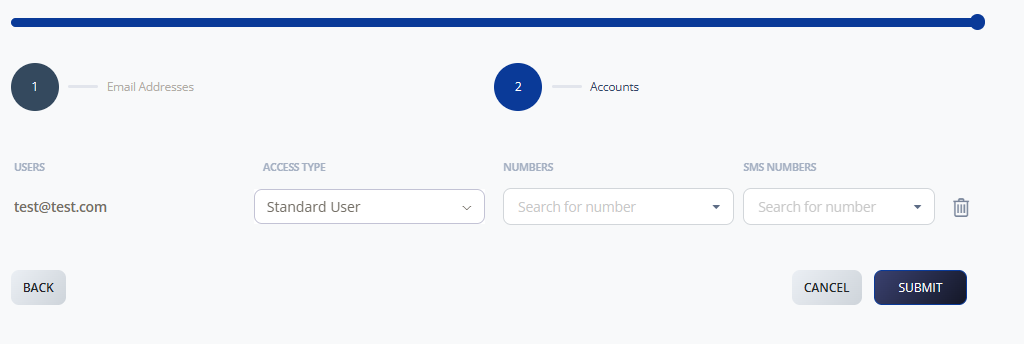
  1. On the Accounts screen, choose the appropriate user role:
    • Administrator: For users who need administrative access. (Billing, call records, recording, IT)
    • Standard User: For users who need standard account access. (Call records, set up Voicemail and other Features)
  2. If needed, assign a phone number to the user.
  3. Click Submit to send the invitation.

Step 4: Accept the Invitation

The invited user will receive an email with instructions to complete their account setup.

  1. Open the invitation email.
  2. Follow the instructions to set up your name, password, and profile picture.
  3. Save your changes to complete the setup.

Step 5: Log In to 2talk

Once the setup is complete, the new user can log in to their 2talk account and access the available 2talk apps.

Your new user is now ready to get started!

Table of Contents