How to Use SMS

Send and receive SMS from the 2talk mobile and desktop apps when messaging is enabled for your account and number.

You can send and receive SMS messages from the 2talk mobile app and desktop app when SMS is enabled for your account and number.

Business SMS sent to U.S. mobile numbers may require 10DLC registration before messages can be delivered reliably.
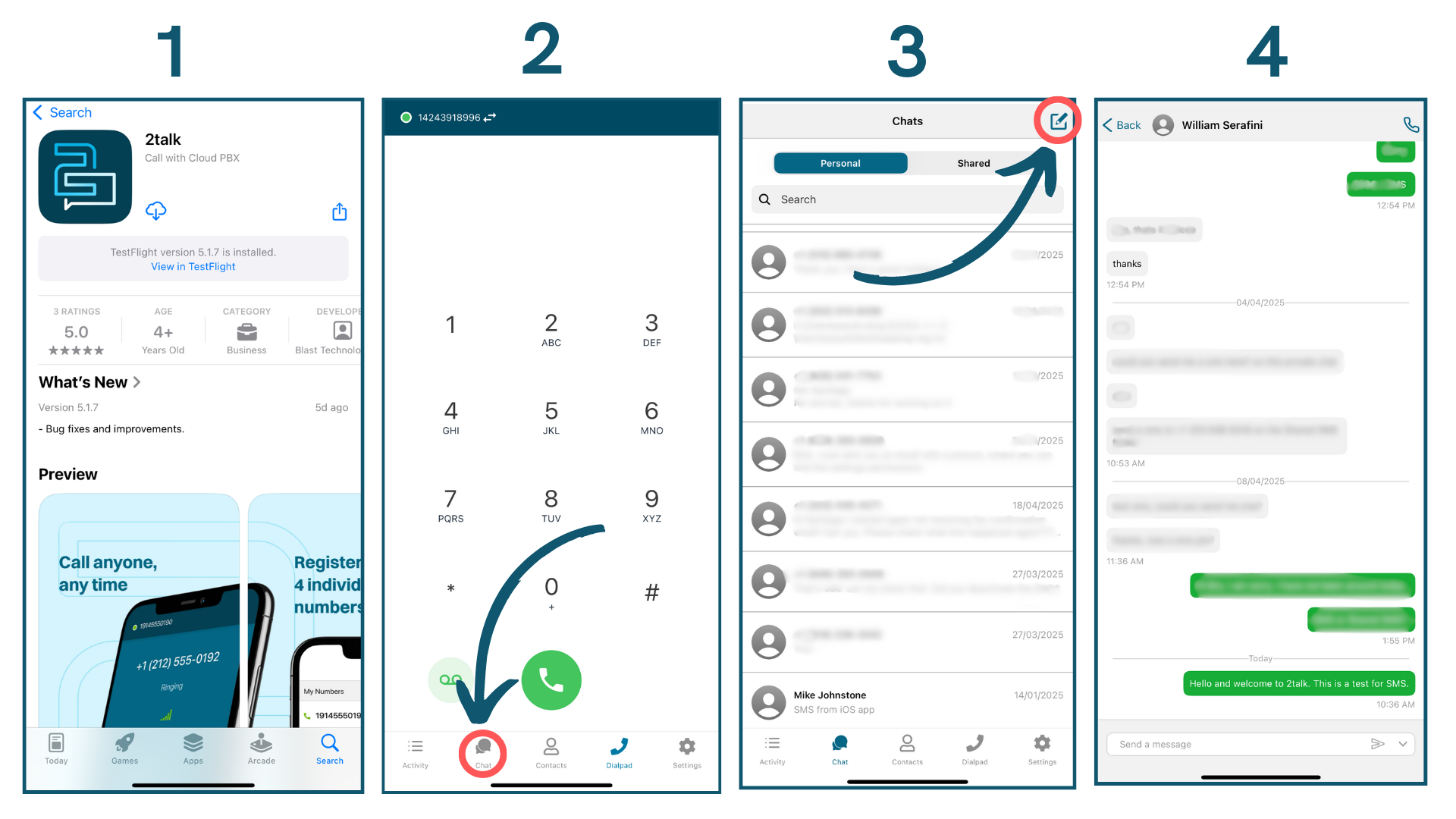
iOS

  1. Download the 2talk app from the App Store.
  2. Sign in to the 2talk app with your account.
  3. Go to Chat.
  4. Tap the New Message icon in the top-right corner.
  5. Enter the phone number you want to text, or select a contact from your device.
  6. Type your message and send it.

SMS in the iOS app

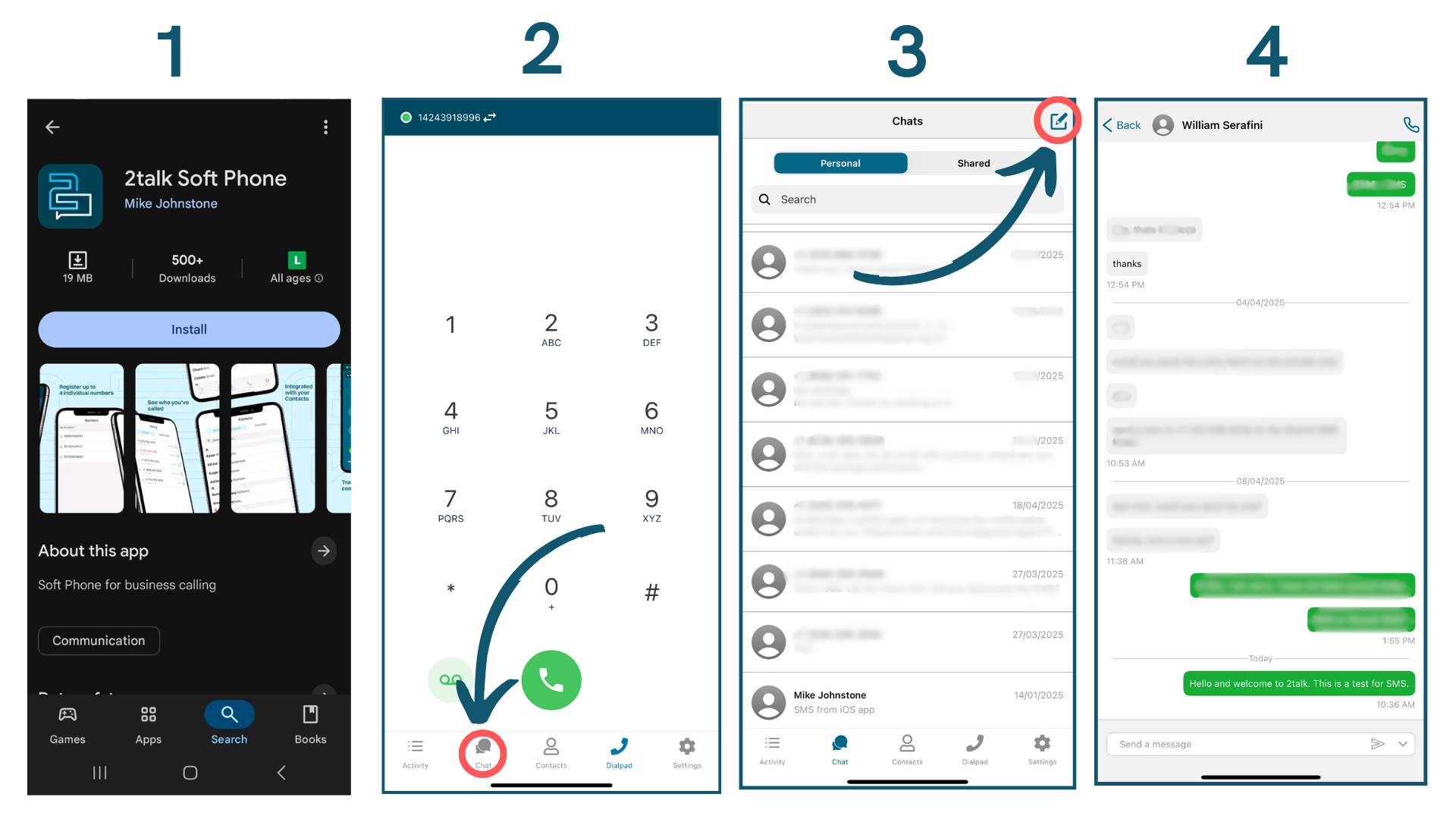
Android

  1. Download the 2talk app from Google Play.
  2. Sign in to the 2talk app with your account.
  3. Go to Chat.
  4. Tap the New Message icon in the top-right corner.
  5. Enter the phone number you want to text, or select a contact from your device.
  6. Type your message and send it.

SMS in the Android app

Desktop

  1. Open the 2talk desktop app.
  2. Sign in with your account.
  3. If SMS is enabled for your account, click the Chat Bubble icon in the top-right corner.
  4. Enter the phone number or select an existing conversation.
  5. Type your message and send it.

SMS in the desktop app

Table of Contents