Mobile App
Experience ultimate mobility
Learn more

Mobile App
Experience ultimate mobility
Cloud Communications and VoIP Calling
Setting up phone calling for Microsoft Teams using our Direct Routing configuration couldn’t be easier. Our PowerShell wizard integrates directly into your Teams account to automate and simplify what is otherwise a complicated setup. Our only prerequisites are your Teams Domain and Teams Phone licensing and we handle the rest: DNS, users, phone numbers, PSTN and routing information.
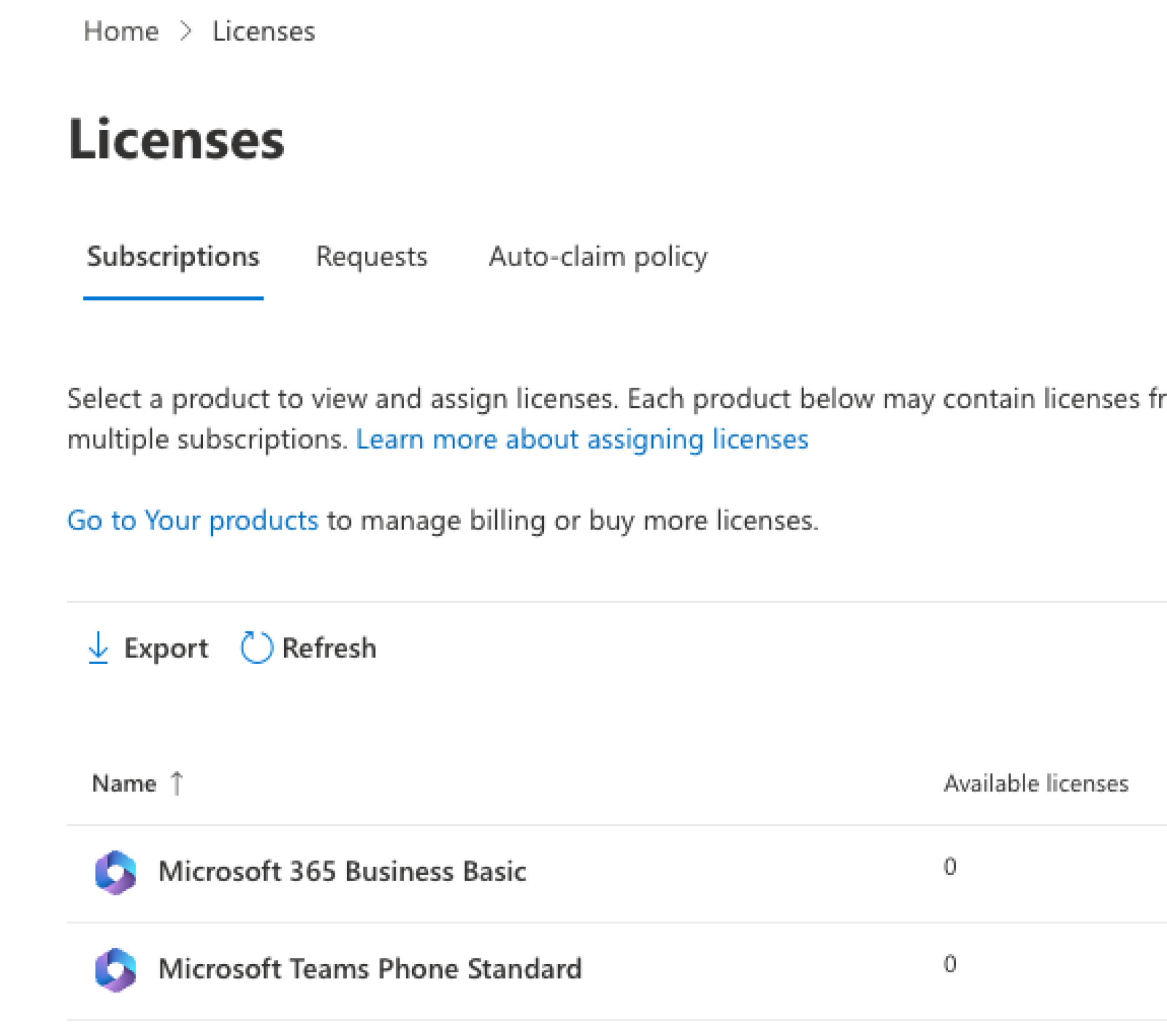
Enabling phone services for Microsoft Teams requires specific licensing for each user:
Here’s where to set this up:
Back on 2talk’s portal, if you’re adding new numbers to your account, go to Switchboard, select Add Number and follow the instructions. Check out the Adding Numbers article for more information. Otherwise, or once the new numbers have been added, you can follow the next steps.
Use our PowerShell wizard to generate the necessary pwsh scripts to complete your Direct Routing setup.
Open a PowerShell window and connect to your Microsoft 365 tenant using the Microsoft Graph API.
Install-Module Microsoft.Graph #: Connect-MgGraph -Scopes "User.ReadWrite.All","Domain.ReadWrite.All"
Use the New-MgDomaincmdlet to add a domain.
New-MgDomain -BodyParameter @{Id=”msAccountNumber).teams.2talk.com”;IsDefault=”False”}
Note replace “ms1xxxx” with your account number, e.g., ID=ms59620224).teams.2talk.com per example below.
$MgVerificationCode = (Get-MgDomainVerificationDnsRecord -DomainId "ms1xxxx.teams.2talk.com" | Where-Object {$_.RecordType -eq "Txt"}).AdditionalProperties.text echo $MgVerificationCodeDomain validation TXT record: this record is generated by Microsoft to validate your unique address against our DNS. Copy and paste the record into Add TXT dialog to insert the record.
You need to confirm the domain with Microsoft. Run this command:
Confirm-MgDomain -DomainId "ms1xxxx.teams.2talk.com"
Following confirmation, we will remove the TXT record from our Cloudflare DNS.
Important: we have provided a 5-minute window to complete this step. If you’re unable to confirm the domain in the allocated time, you can repeat this confirmation step at a later date.
Note: Microsoft require a “temporary user” to associate with the trunk domain. This temporary user requires a Office 365 Business license.
[email protected]). 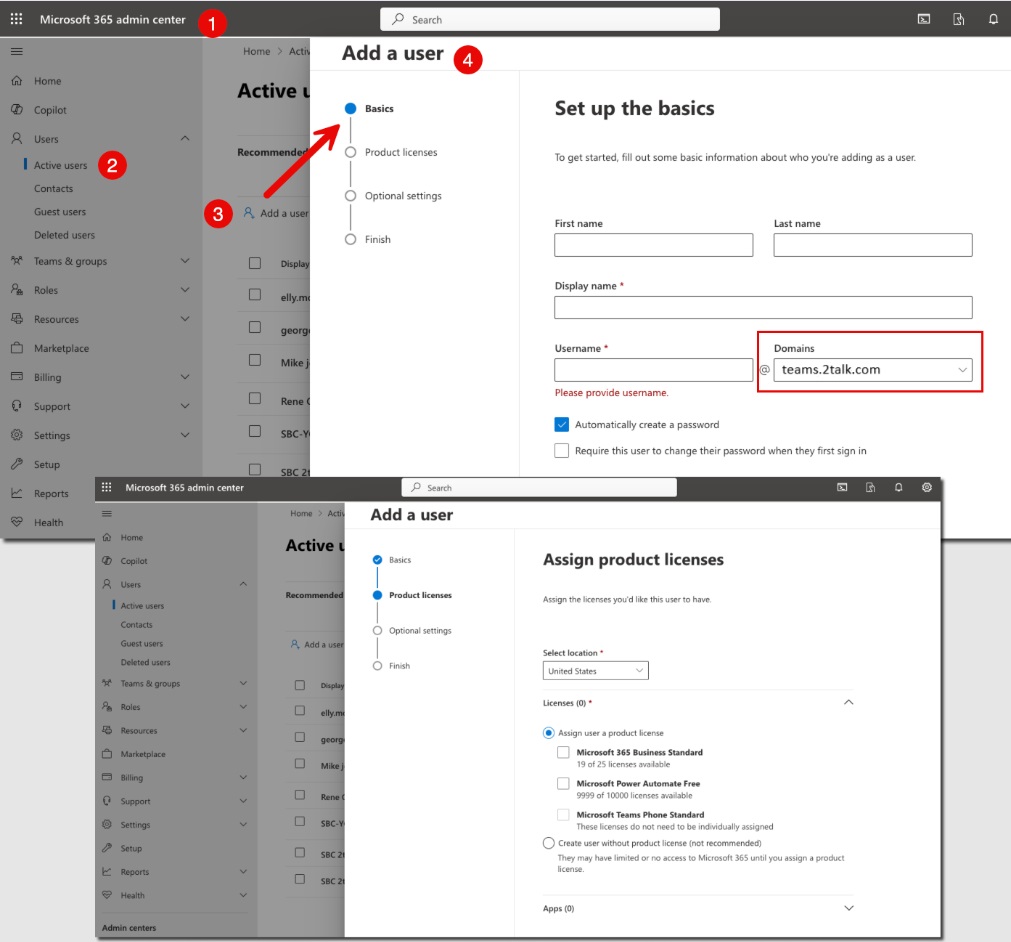
Open a PowerShell window and connect to your Microsoft 365 tenant using the Microsoft Graph API.
Install-Module Microsoft.Graph Connect-MgGraph -Scopes "User.ReadWrite.All","Domain.ReadWrite.All"
Use the New-CsOnlinePSTNGatewaycmdlet to create a PSTN gateway. You’ll need to specify the parameters required for the gateway, including the FQDN (Fully Qualified Domain Name) and other configuration details.
New-CsOnlinePSTNGateway -FQDN ms1xxxx.teams.2talk.com -SIPSignalingPort 5061 -MaxConcurrentSessions 100 -Enabled $true
Use New-CsOnlinePSTNGateway to verify that the PSTN gateway has been created.
Get-CsOnlinePSTNGateway
Open a PowerShell window and connect to your Microsoft 365 tenant using the Microsoft Graph API.
Install-Module Microsoft.Graph Connect-MgGraph -Scopes "User.ReadWrite.All","Domain.ReadWrite.All"
Paste the commands to set up the PSTN identity and Voice route details.
Set-CsOnlinePstnUsage -Identity Global -Usage @{Add="VOIP"} New-CsOnlineVoiceRoute -Identity "VOIP" -NumberPattern ".*" -OnlinePstnGatewayList "ms1xxxx.teams.2talk.com" -Priority 1 -OnlinePstnUsages "VOIP" New-CsOnlineVoiceRoutingPolicy -Identity "VOIP" -OnlinePstnUsages "VOIP"
If you have more than a single user, you will need to map a phone number to each of your Teams users using the following commands. The example below assumes that our example user, [email protected], is going to be assigned the phone number +1 (310) 635-1799, using the Identity of “VOIP”.
Replace the following commands as required for your own circumstances.
Set-CsPhoneNumberAssignment -Identity [email protected] -PhoneNumber +13106351799 -PhoneNumberType DirectRouting Grant-CsTeamsCallingPolicy -PolicyName AllowCalling -Identity [email protected] Grant-CsOnlineVoiceRoutingPolicy -Identity [email protected] -PolicyName "VOIP" Set-CsOnlineVoicemailUserSettings -Identity [email protected] -VoicemailEnabled $false (Note - phone numbers from your account - e.g., 13106351799)
Optionally, run the following command to disconnect your PowerShell instance.
Disconnect-MicrosoftTeams
All good! Your 2talk account should be all set and connected back to your Microsoft 365 account.
Microsoft Teams, Microsoft Windows and PowerShell are trademarks or registered trademarks of Microsoft Corporation in the US and other countries. macOS is a registered trademark of Apple Inc.

