Presence and Busy Lamp Field (BLF)

Use Busy Lamp Field and presence to monitor another extension's live status from supported IP phone keys.

Busy Lamp Field (BLF), sometimes called Presence, is a lamp on an IP phone that shows the live status of another extension on your account. A glance at the BLF key tells you whether a colleague is free, on a call, or being rung.

How BLF works

BLF runs over SIP. Your phone subscribes to the status of the extensions you want to monitor. When one of those extensions changes state — idle, ringing, or in a call — 2talk Cloud PBX sends a SIP NOTIFY message to every subscriber, and your phone acknowledges with a SIP 200 OK. Presence / BLF is enabled on the 2talk network by default; you only need to configure the BLF keys on each handset.

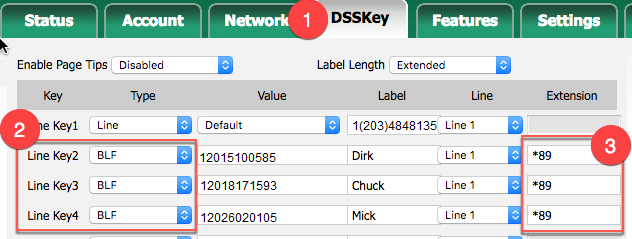
Set up BLF on a Yealink phone

  1. Open the Yealink web interface and go to the DSSKey tab.
  2. Select the line key you want to use for BLF.
  3. Set Type to BLF.
  4. Set Value to the full phone number you want to monitor (include country and area code, for example 13106341777).
  5. Set Extension to *89 for Directed Group Pickup. This lets the BLF key pick up an incoming call ringing on the monitored phone.
  6. Click Confirm to save.

Once configured, the BLF LED on the Yealink shows the extension’s state:
  • Green – available. Press the BLF key to dial the extension.
  • Red – the extension is on a call.
  • Blinking red – the extension is ringing. Press the BLF key to pick up the call.

BLF lamp states

Set up BLF on a Polycom VVX phone

  1. On the phone, go to Settings > Directories > Contacts Directory.
  2. Press Add (+) and enter the contact’s name and contact number (full number including country and area code).
  3. Set Protocol to SIP (VVX 500 and 600 only).
  4. Set Watch Buddy to Enable.
  5. Save the contact.
  6. Optionally, select the contact and choose Add to Favorites so it appears on the phone’s home screen.

Set up BLF on a Cisco SPA phone

  1. Log in to the phone’s web UI. The IP address is at Settings > Network > Current IP.
  2. Open the advanced view by going to https://<phone-ip>/admin/advanced.
  3. Go to the Phone tab and select the target line key (Line Key 1, for example).
  4. Paste the following into Extended Function, replacing the sample number with the extension you want to monitor:
    fnc=blf+sd+cp;[email protected];usr=12036809262;nme=Betty
  5. Click Save and reboot the phone.
Table of Contents