Provision a Grandstream Phone Manually

Configure a Grandstream phone manually when it is not managed through 2talk Device Provisioning.

Use manual provisioning when your Grandstream phone is not configured through 2talk Device Provisioning.
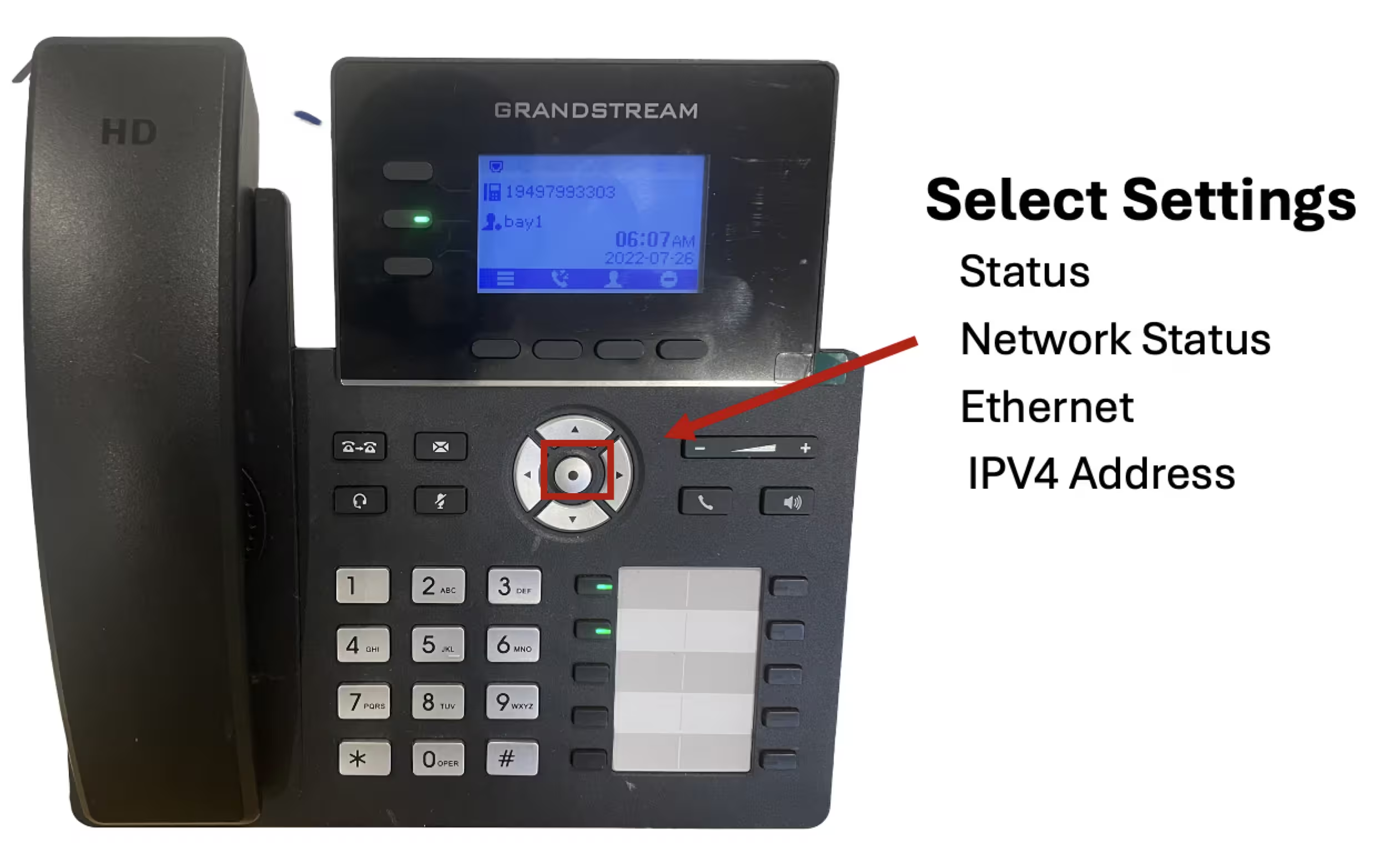
Open the Grandstream web interface

  1. On the phone, open Status > Network Status.
  2. Copy the IPv4 address.
  3. Enter the IP address in a browser on the same network.
  4. Sign in to the Grandstream web interface. The default username and password are often admin / admin.

Configure account settings

  1. Go to Account or Account Status and select an available account.
  2. Set Activate Account to Enabled.
  3. Enter an account name.
  4. Set SIP User ID to the full 2talk number.
  5. Set SIP Auth ID to the full 2talk number.
  6. Set SIP Server to plus.2talk.com.
  7. Enter the SIP password for the number.

Configure SIP settings

  • SIP Registration: Enabled
  • SIP Transport: TLS
  • Local SIP Port: 5061
  • Registration Expiration: 180 seconds, if available

Save the changes and reboot the phone. Confirm that the account shows as registered after the reboot.

Table of Contents