Mobile App
Experience ultimate mobility
Learn more

Mobile App
Experience ultimate mobility
Cloud Communications and VoIP Calling
2talk’s vFax service replaces a physical fax machine with a virtual fax number that uses email to send and receive faxes. With vFax you decide who can send and receive faxes on your number, reduce unwanted faxes, and avoid maintaining a physical fax machine.
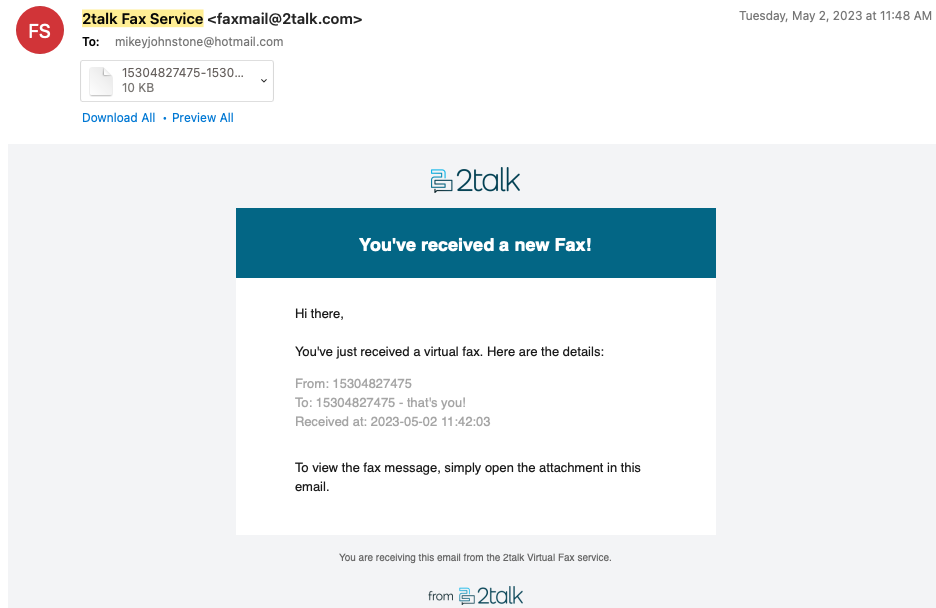
When you send a fax through vFax, you email an attachment to a 2talk fax address. We convert the attachment, deliver it to the destination fax number, and email you a confirmation. Inbound faxes arrive in your email inbox as PDF attachments.
Letter or A4 portrait pages (or smaller) in PDF, JPEG, PostScript, or TIFF format are supported. Microsoft Word documents are not supported, so export them to PDF before sending.
Note: only email addresses that have been authorized as senders for your fax number can send faxes. You can manage authorized senders in your 2talk account under Switchboard > Fax.

After the fax is delivered (or fails), 2talk emails the sender a confirmation that includes the destination number, page count, and delivery status. The confirmation looks like the example below.