Mobile App
Experience ultimate mobility
Learn more

Mobile App
Experience ultimate mobility
Cloud Communications and VoIP Calling
Bulk Edit lets you update settings for multiple numbers at the same time. Use it when several numbers need the same configuration change.
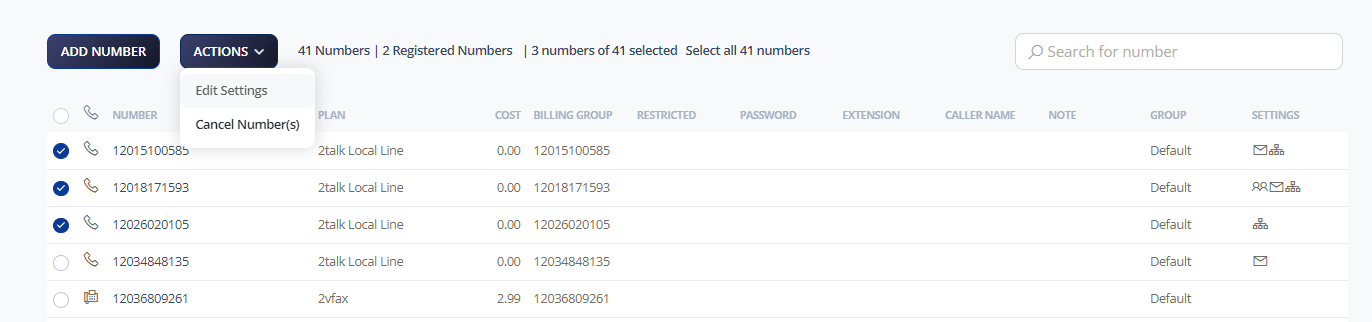
Bulk Edit shows the same available settings as an individual number. If the selected numbers currently have different values, the field may show Various.
Update only the settings you want to change. Some fields, such as the number itself, cannot be changed in Bulk Edit.

Click Save for each setting you update.
