Call Parking

Set up Call Parking so active calls can be placed in a virtual bay and retrieved from another phone.

Call Parking places an active call into a virtual parking bay so another phone in the same group can retrieve it. It is useful for receptionists and teams that need to hand calls off between desks.

Set up Call Parking

  1. Log in to your 2talk account.
  2. Go to Switchboard.
  3. Select the number you want to configure.
  4. Go to Advanced > Call Parking.
  5. Choose the number of parking slots.
  6. Set the parking timeout in seconds.
  7. Choose where unanswered parked calls should return.
  8. Click Save.

Park and retrieve a call

  • Park a call: Press the phone’s Call Park key or transfer the call to *1701.
  • Retrieve a parked call: Press the flashing Call Park key or dial *1701.

Configure Call Park buttons

  1. In the phone’s line key configuration, set the key type to Call Park.
  2. Set the value to *1701 for parking bay 1. Use *1702, *1703, and so on for additional bays.
  3. Add a label, such as Bay 1 or Park 1.
  4. Select the line the key should use.

When a call is parked, phones monitoring that bay show a flashing Call Park key. Any phone in the same group can retrieve the call.

Example

A receptionist parks a call in bay *1701. A coworker’s phone shows a flashing key labeled Bay 1. The coworker presses the key to retrieve the call.

Yealink device provisioning

If you provision Yealink phones through 2talk Device Provisioning, Call Park keys can be pushed to phones automatically.
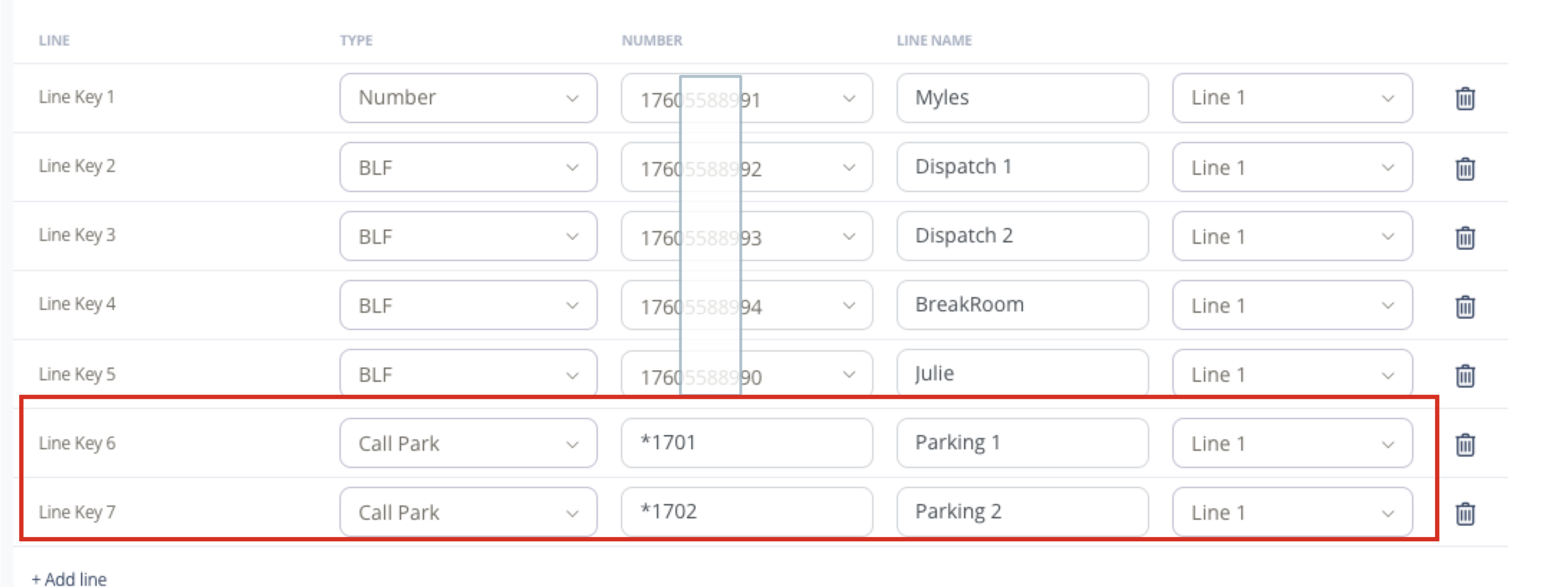
Yealink Call Park provisioning

Table of Contents