Set Up SIP Peering

Set up SIP peering to connect an IP PBX to 2talk with a trusted static public IP address.

SIP peering connects your IP PBX to 2talk using a trusted static public IP address. Unlike SIP registration, peering does not use a username and password for each number.
Before you start

  • You need a static public WAN IP address.
  • Your firewall should allow SIP traffic only to and from 27.111.12.0/24.
  • The 2talk SIP peering IP is 27.111.12.66.
  • Use UDP 5060 or TLS 5061, depending on your PBX configuration.

SIP Peering

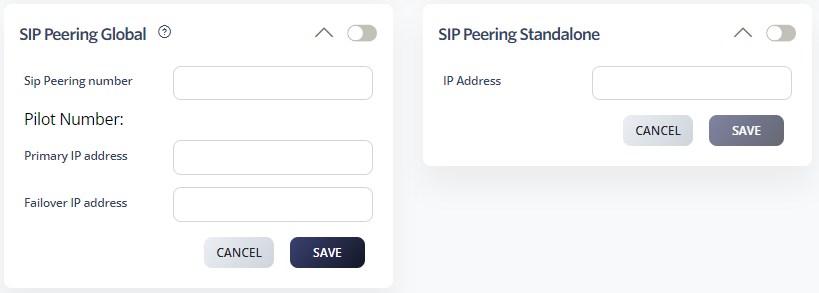
SIP Peering Global

Global peering routes inbound and outbound traffic for the account to one nominated WAN IP address.

  1. Go to the number or account peering settings.
  2. Select SIP Peering Global.
  3. Enter the primary trunk host IP address.
  4. Enter a failover trunk IP address if required.
  5. Click Save.

In global peering mode, most Cloud PBX features are disabled except emergency failover.

Standalone Peering

Standalone peering routes a single number to a specific WAN IP address. Use it when different numbers need to route to different offices or PBX systems.

  1. Select the number you want to configure.
  2. Go to SIP Peering Standalone.
  3. Enable standalone peering.
  4. Enter the IP address.
  5. Click Save.
Table of Contents